Screen readers can announce alternative text (or alt text) for images to help ensure that all users can have an equivalent experience. When you add an image to a document, it is your responsibility to add this alt text so that screen readers know what to announce.
To add alt text, right-click on an image and then choose “View Alt Text.” Then, in the Alt Text pane, write a description of the image. If the image is strictly decorative, you can check “Mark as decorative” which tells screen readers to ignore the image.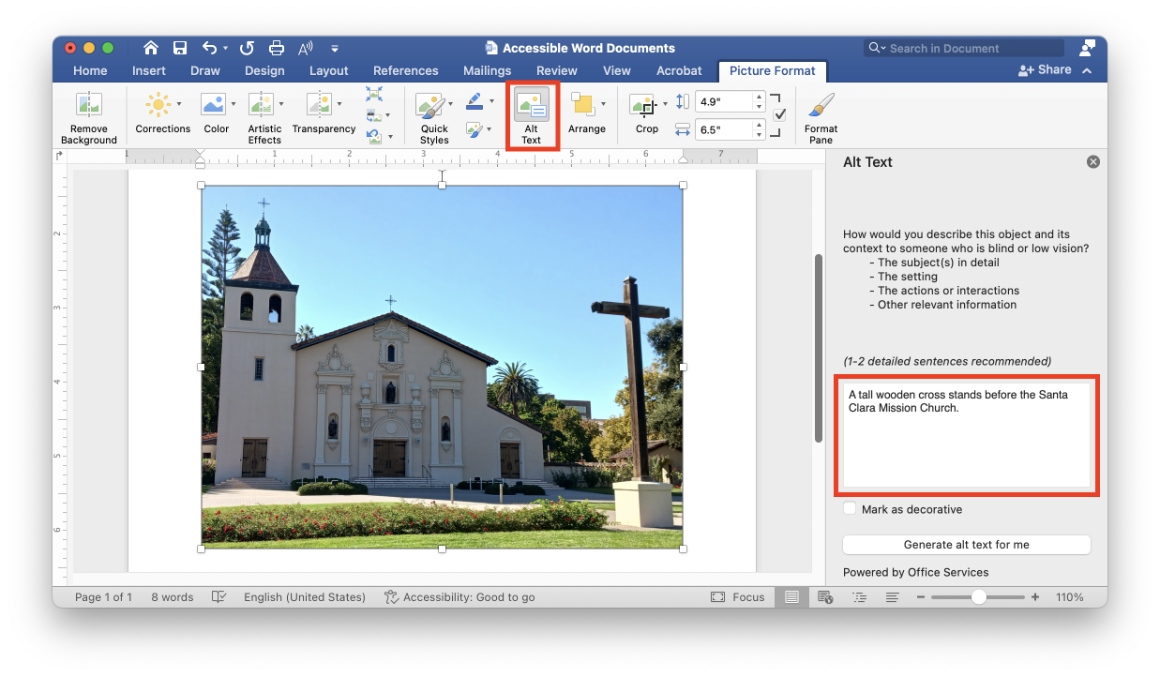 You may see a button labeled “Generate alt text for me.” This will create a computer-generated description of the image. You can use this as a start, but be sure to edit it so that the alt text provides an equivalent experience.
Good alt text takes into consideration not just the image itself but the overall context. For example, the computer-generated alt text for a photo might be “A dog sleeps in front of a building,” but if you are sharing about your life, you might want to update the alt text to “Lassie sleeps in front of the Santa Clara Mission Church.”