Microsoft Word includes a built-in Accessibility Assistant feature that will automatically check for certain accessibility issues and help you correct them.
To use the accessibility checker, go to the Review tab and then select “Check Accessibility.”
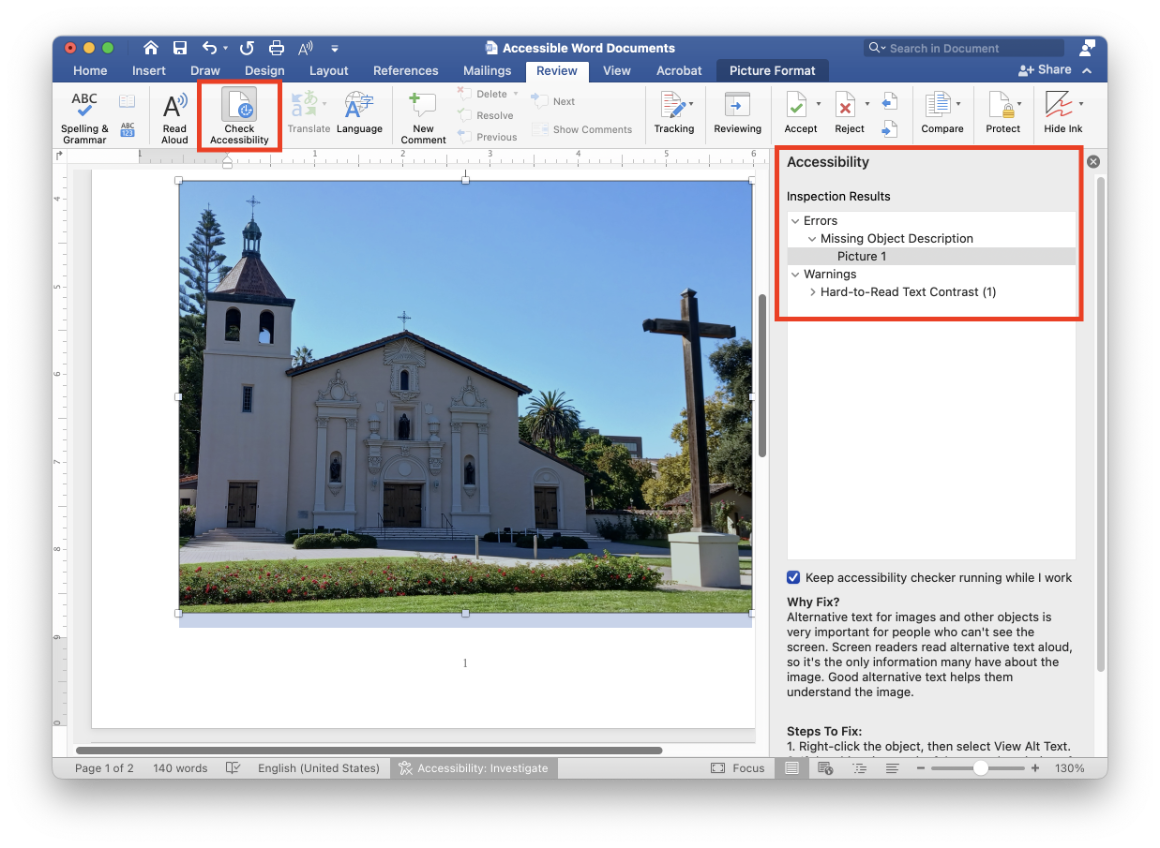
We recommend using the accessibility checker periodically as you are working on your document and again as you finalize your document before sharing it with others.
The “Check accessibility” tool won’t catch all potential barriers, so make sure you keep accessibility in mind when you review and edit your document. For example:
- Did you include descriptive headings and apply heading styles?
- For images, did you write alternative text that provides an equal experience?
- Did you remember to set a descriptive document title?
We also recommend following the best practices in this guide as you go (for example, using heading styles right away for each heading and adding alt text right after you insert an image). This way, accessibility won’t feel like an added burden at the end and you’ll become more comfortable creating accessible documents by default.
In general, digital accessibility is much easier when we handle it proactively from the start rather than reactively at the end of a project. It’s been said that accessibility is like blueberry muffins: it’s probably easier to add blueberries when you’re mixing the batter, rather than after your muffins have come out of the oven.