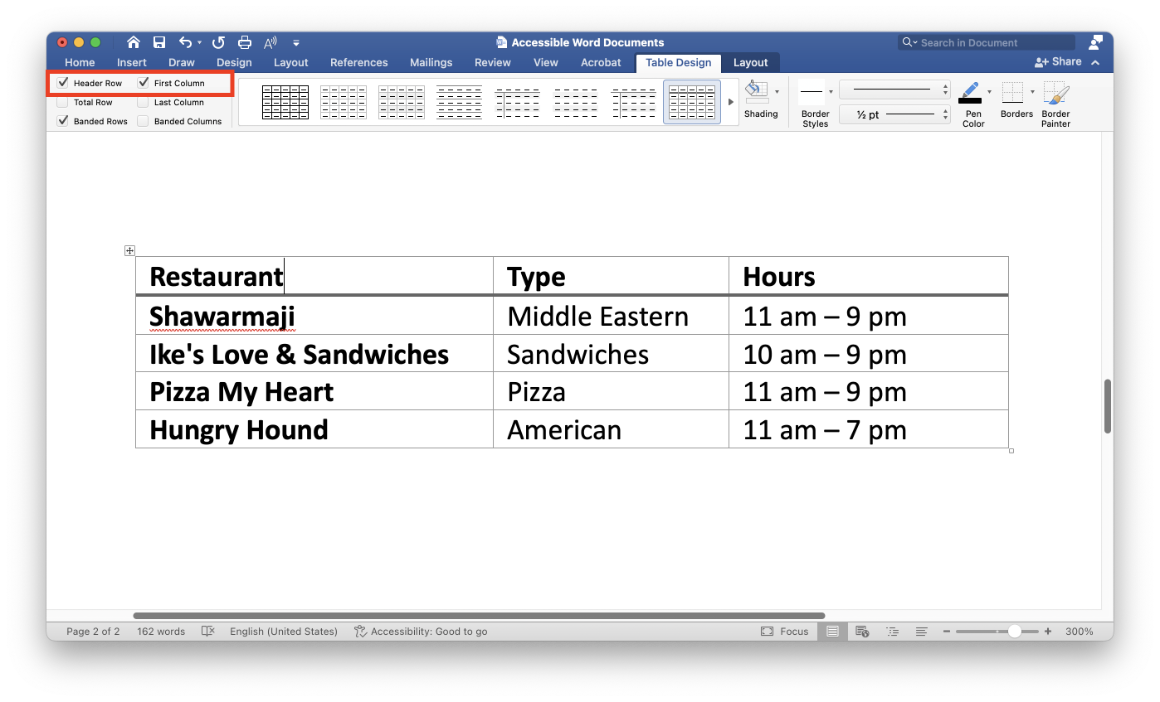
Tables can be accessible for screen reader users, and if tables are carefully constructed, they can be a great way to present data for all users. However, if your table is not accessible, screen reader users won’t be able to effectively navigate it and may not be able to clearly understand the underlying content.
Use tables for logical data tables. Try to avoid using tables simply to achieve a certain visual layout. Unnecessary layout tables can present challenges to people with low vision who need to magnify content.
Keep tables simple. Avoid complex tables with multi-level headers, and avoid nesting one table within another. Avoid complex tables that have merged or split cells, and where possible try to avoid having blank cells. Microsoft Word’s support for tables is limited, and it is often not possible to make these sorts of complex tables accessible in Word. If you have a complex table, try breaking it up into multiple simple tables with a unique and descriptive heading before each table.
It is important that you properly identify header rows and columns. When you do so, screen readers will announce the column header when users navigate into a new column and the row header when users navigate into a new row.
The first row in your table should consist of column headers. To properly identify your column headers, ensure “Header row” is checked in the “Table Design” tab.
If the data in the first column of your table serves as row headers, you will need to identify this as well. To properly identify your row headers, ensure “First Column” is checked in the “Table Design” tab.
Note that table headers are not the same as heading styles. Heading styles help label a section of a document, whereas table headers help explain rows or columns within a data table. Screen readers handle these differently, so don’t apply heading styles to your table headers.