Share as a Word Document
Word documents are generally more flexible and accessible than PDF files. We encourage sharing your documents as Word documents (.docx files) rather than as PDF files for improved accessibility when possible.
Save as Accessible PDF
If you share your document as a PDF file, it is important that you correctly export your document from Word in a way that preserves all of the accessibility information you’ve built into your document. If you’re not careful at this step, your PDF file will be inaccessible for screen reader users, even if you’ve carefully added heading styles and alt text to your Word document.
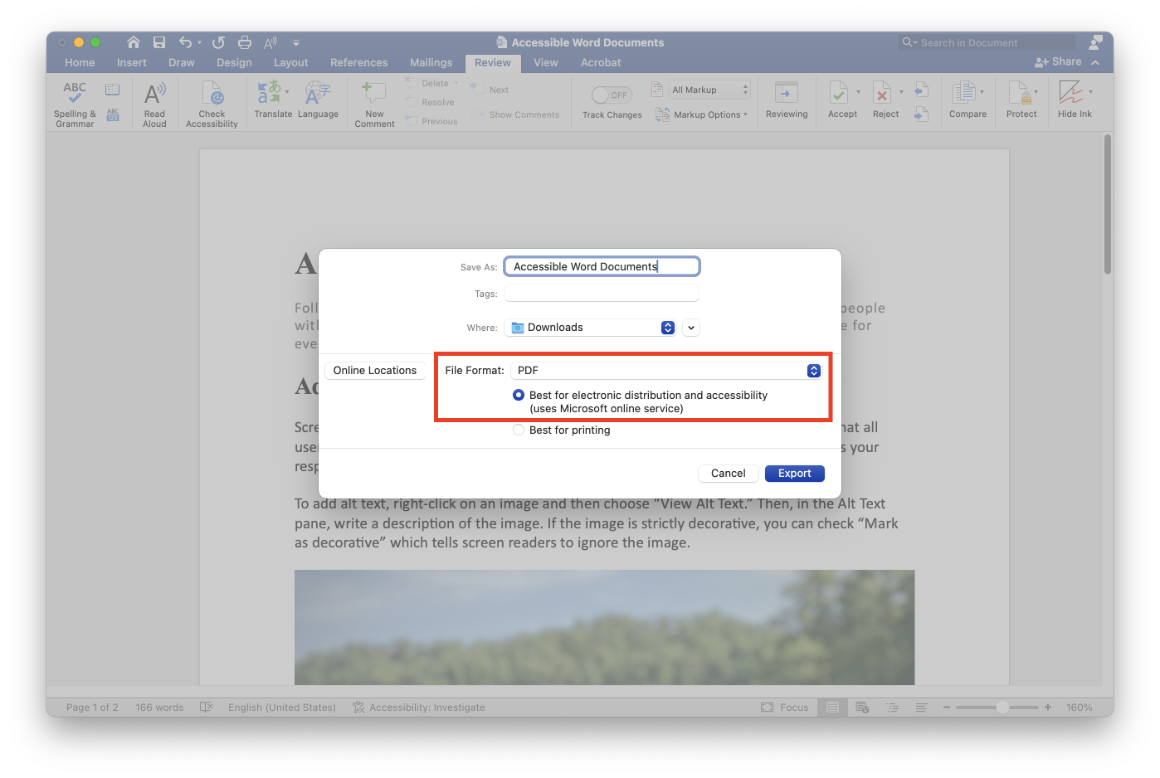
On Mac, follow these steps:
- Select “File” in the top menu.
- Select “Save As.”
- For “File Format,” select “PDF.”
- Under “File Format,” select “Best for electronic distribution and accessibility.”
- Select “Export.”
On Windows, follow these steps:
- Select “File” in the top menu.
- Select “Save As” and choose a location.
- For “Save as type,” select “PDF.”
- For “Optimize for,” select “Standard (publishing online and printing).”
- Select “Options…”
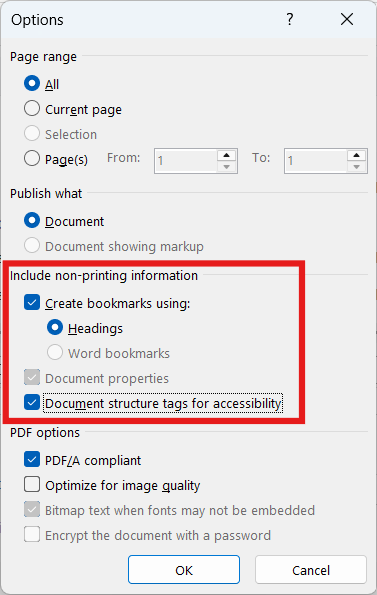
- Ensure the following options are checked and then select “OK”:
- Create bookmarks using: Headings
- Document properties
- Document structure tags for accessibility
- Select “Save.”